
Practical Website Guides
Google Search Console: Setting Up to Improve Site Performance
Search Console is free, and most business owners who have it set up never open it. That’s understandable - the interface buries useful information under reports most people don’t need - but it also means the single best early-warning system for “something’s gone wrong with how Google sees your site” sits unused until there’s already a problem.
Here’s what actually matters, in the order we set it up for a client site.
Verify the property properly
There are several verification methods (DNS TXT record, HTML file upload, meta tag, Google Analytics/Tag Manager). For a site you control the DNS for, the DNS TXT record is the most durable - it survives a full site rebuild or platform migration, where an HTML-file or meta-tag verification can get wiped out by accident. Verify the domain property (covering http, https, www, and non-www together), not just a single URL-prefix property, unless you specifically need to separate subdomains.
Submit your sitemap - then check it actually worked
Submitting a sitemap (Settings → Sitemaps) doesn’t guarantee pages get indexed; it just tells Google where to look. After submitting, check back a few days later under “Sitemaps” for the “Success” status and the discovered-page count. If the count is noticeably lower than your actual page total, something’s blocking crawling - worth checking before assuming the sitemap itself failed.
The reports worth checking regularly
Of the dozen or so reports Search Console offers, three earn a recurring slot in an actual workflow:
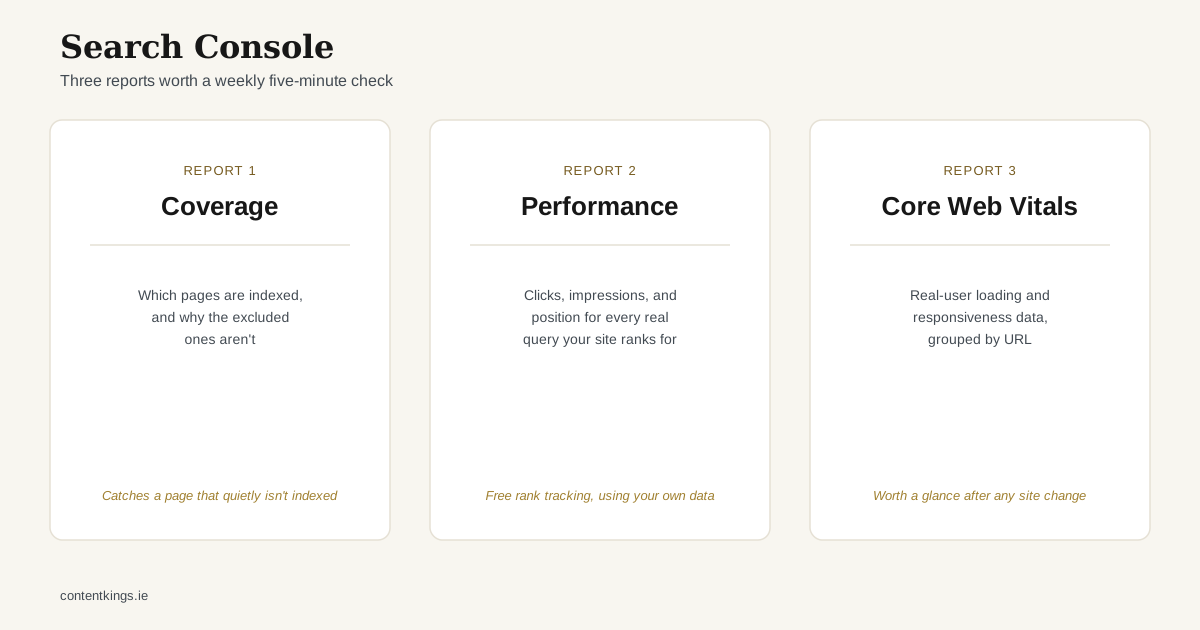
- Coverage / Pages report - shows which pages are indexed versus excluded, and why excluded (“Crawled, not indexed”, “Duplicate without user-selected canonical”, “Blocked by robots.txt”). This is where you catch a page you wanted indexed that quietly isn’t.
- Performance report - clicks, impressions, average position, and CTR by query and by page. The filterable “Queries” tab is the closest free alternative to paid keyword-rank tracking, and it’s using your site’s actual data rather than an estimate.
- Core Web Vitals / Experience - real user data (not lab simulation) on loading, interactivity, and visual stability, grouped by URL. Worth a glance after any significant site or hosting change.
Set up email alerts and leave them on
Search Console emails you automatically when it finds new manual actions, security issues, or a significant spike in indexing errors. This is the main reason verifying the property with an email address someone actually checks matters more than it sounds - it’s the mechanism that tells you about a problem before a client or customer does.
The weekly five-minute check
Once it’s set up, the ongoing maintenance doesn’t need to be elaborate:
- Open the Coverage report. Any new “Excluded” pages that should be indexed? Investigate.
- Glance at the Performance report’s last 28 days versus the previous 28. Any page with a sudden drop in impressions worth looking into?
- Check for any manual action or security notice (there usually won’t be one - that’s the point of checking).
That’s genuinely most of it. Search Console isn’t a tool that rewards obsessive daily checking; it rewards being looked at at all, on a schedule, so that a real problem - a botched redirect, an accidentally-added noindex tag, a sitemap that stopped updating - gets caught in days rather than discovered months later as “why has our traffic been falling since the summer.”
If you’d rather someone else watch this for you, that’s part of what ongoing SEO support actually involves in practice, not just producing new content.